Read an alert
The hub keeps every decision it takes about an alert with its trace, so the alert's page answers why it went to a team and paged a rotation: which rule matched, which facts it saw and where they came from (explanation). Anyone who may see the alert's team may read it.
1. Open the alert
Operations › Alerts, then the alert's title. The page starts with the alert and its routing:
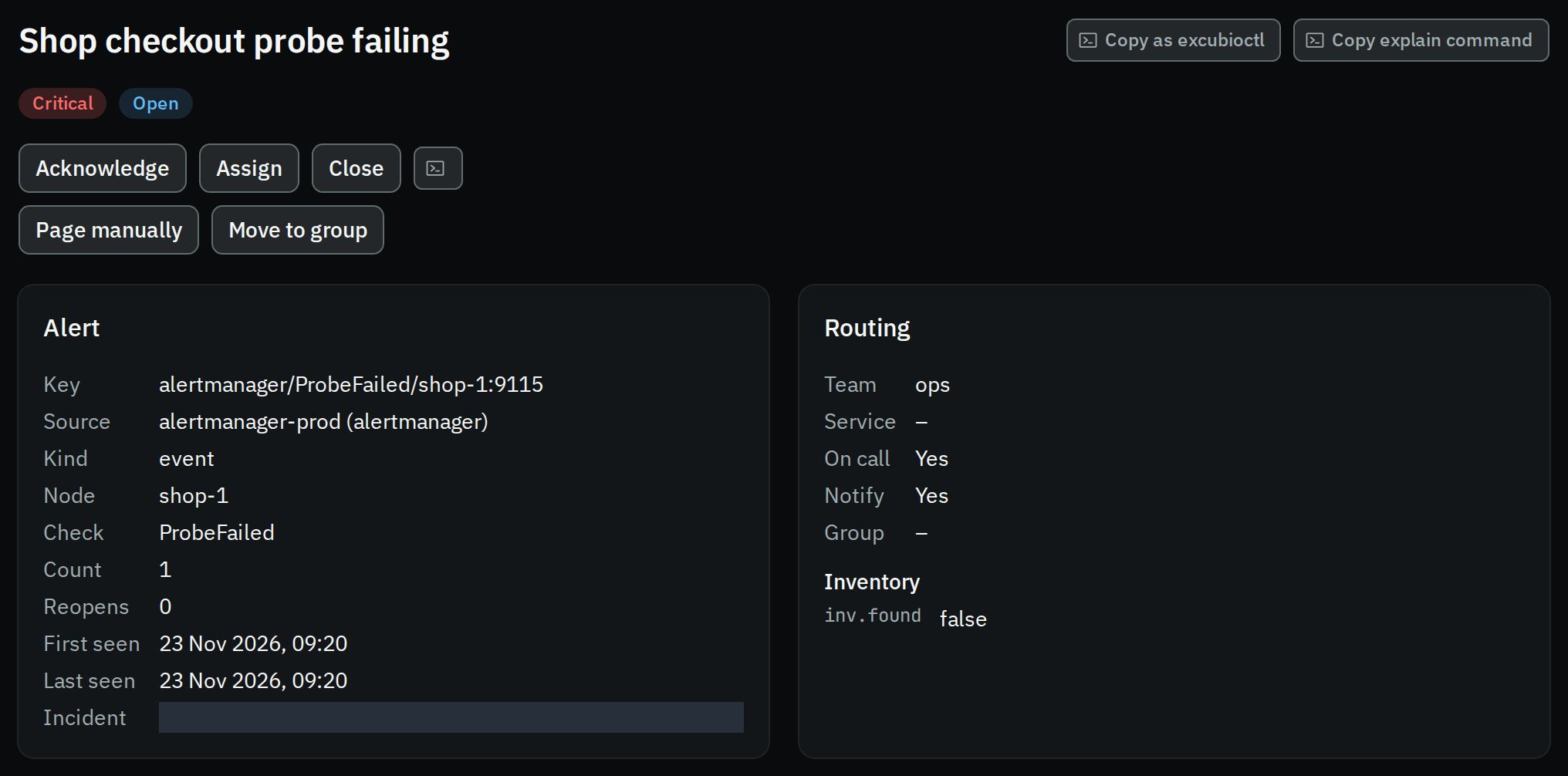
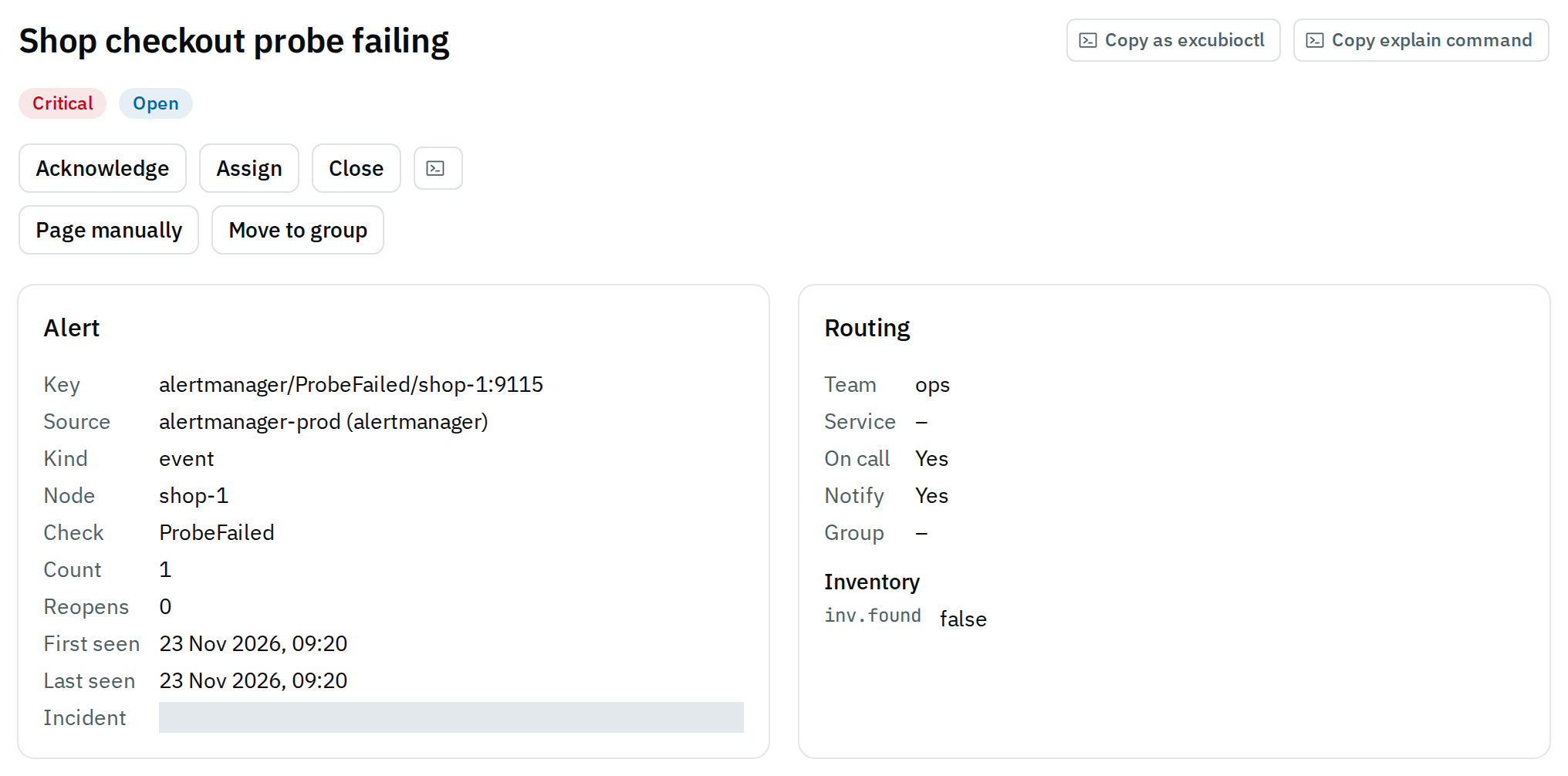
ops and on call.The actions ① acknowledge, assign or close the alert; an acknowledgement here also acknowledges its incident in the cloud (acknowledgement). Page manually pages a rotation for it. Routing ③ shows the facts the Classify rules set and the inventory record the alert was enriched with (enrich).
2. Read the decision
Decisions lists each decision with the revision and routing level it was taken at:
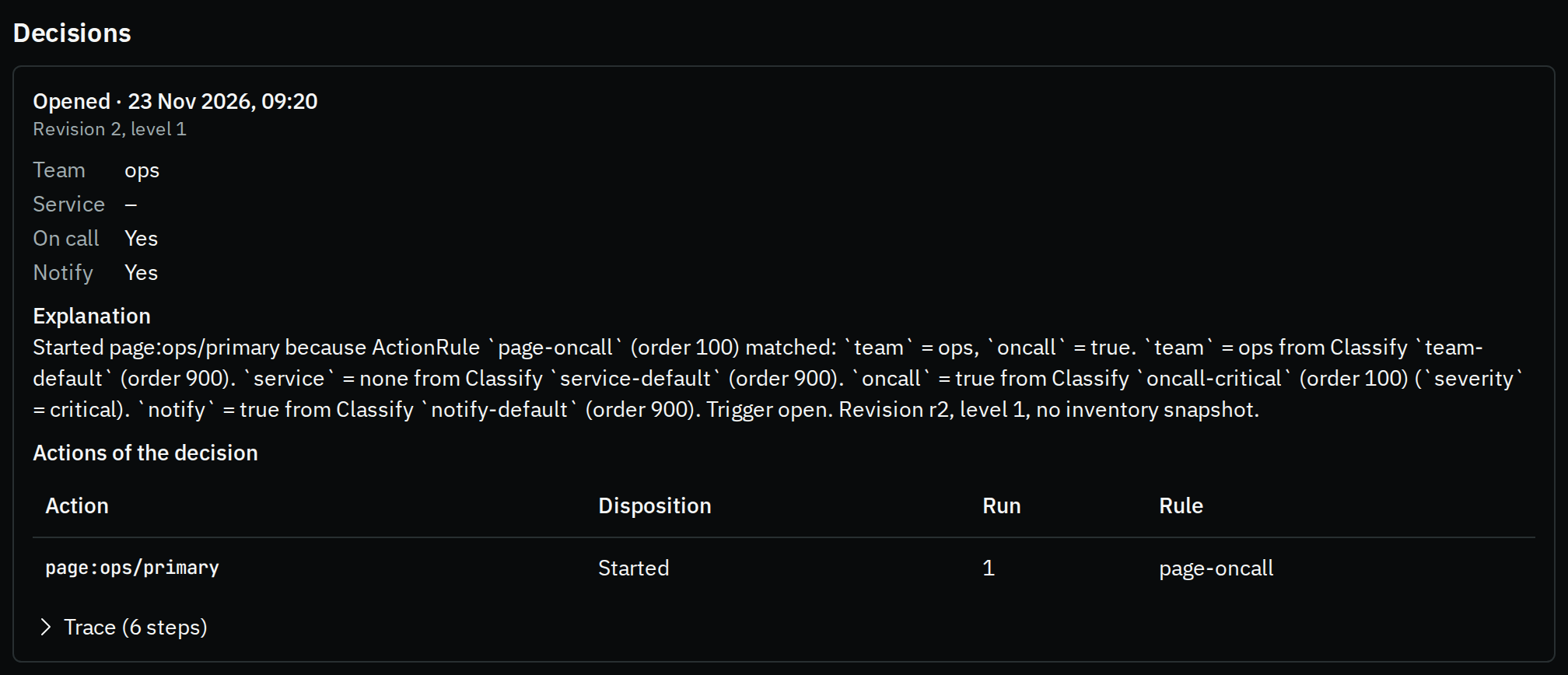
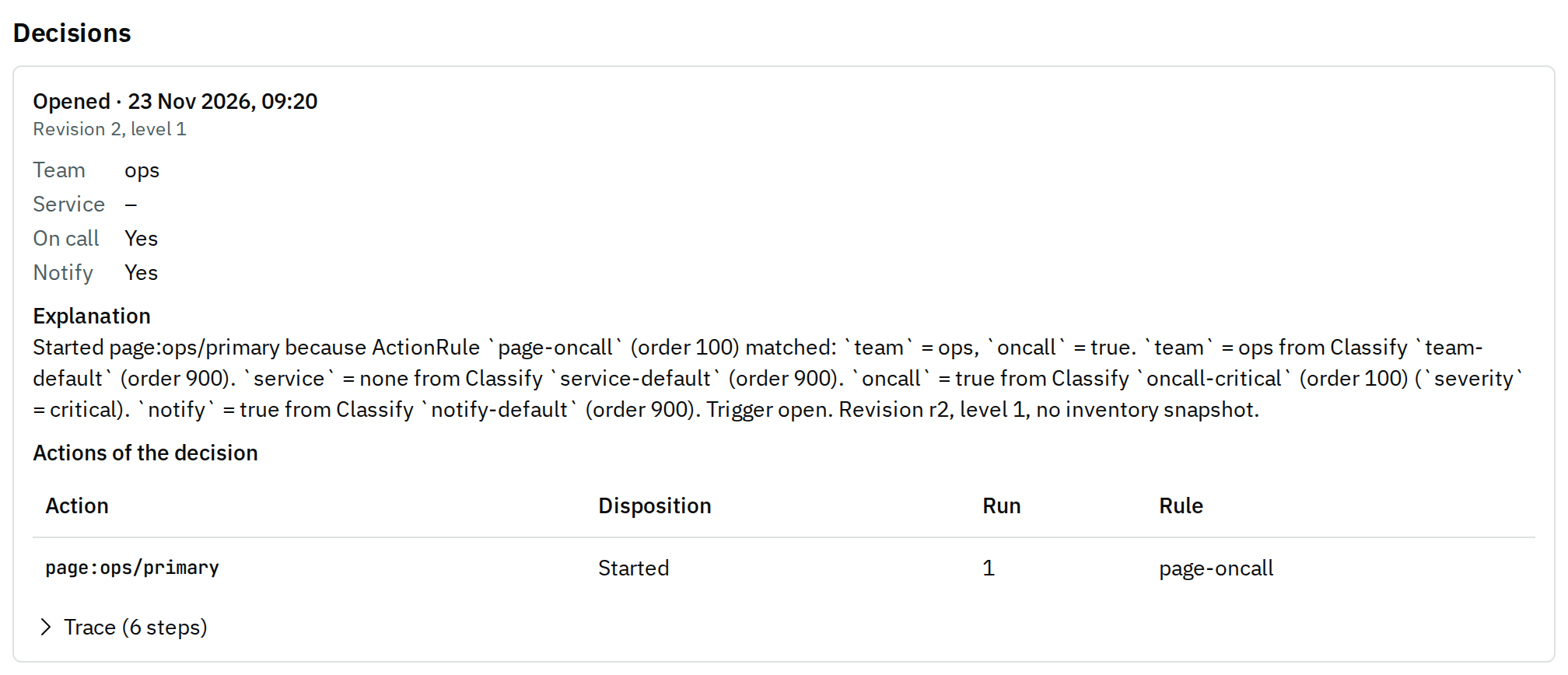
The explanation ① names the ActionRule that matched and the rule behind
each fact; here oncall came from the Classify rule oncall-critical
because the alert is critical. The actions ② show what the decision
started, here the page of ops/primary; Trace ③ unfolds every step
of the evaluation (routing evaluation).
Below are the actions' state, the events with their outcomes and the
alert's transitions. excubioctl alerts explain ID prints the same
explanation (command reference).
3. Ask before it happens
Configuration › Explain takes an event, built from fields or pasted, and shows the decision a revision would take, without storing anything:
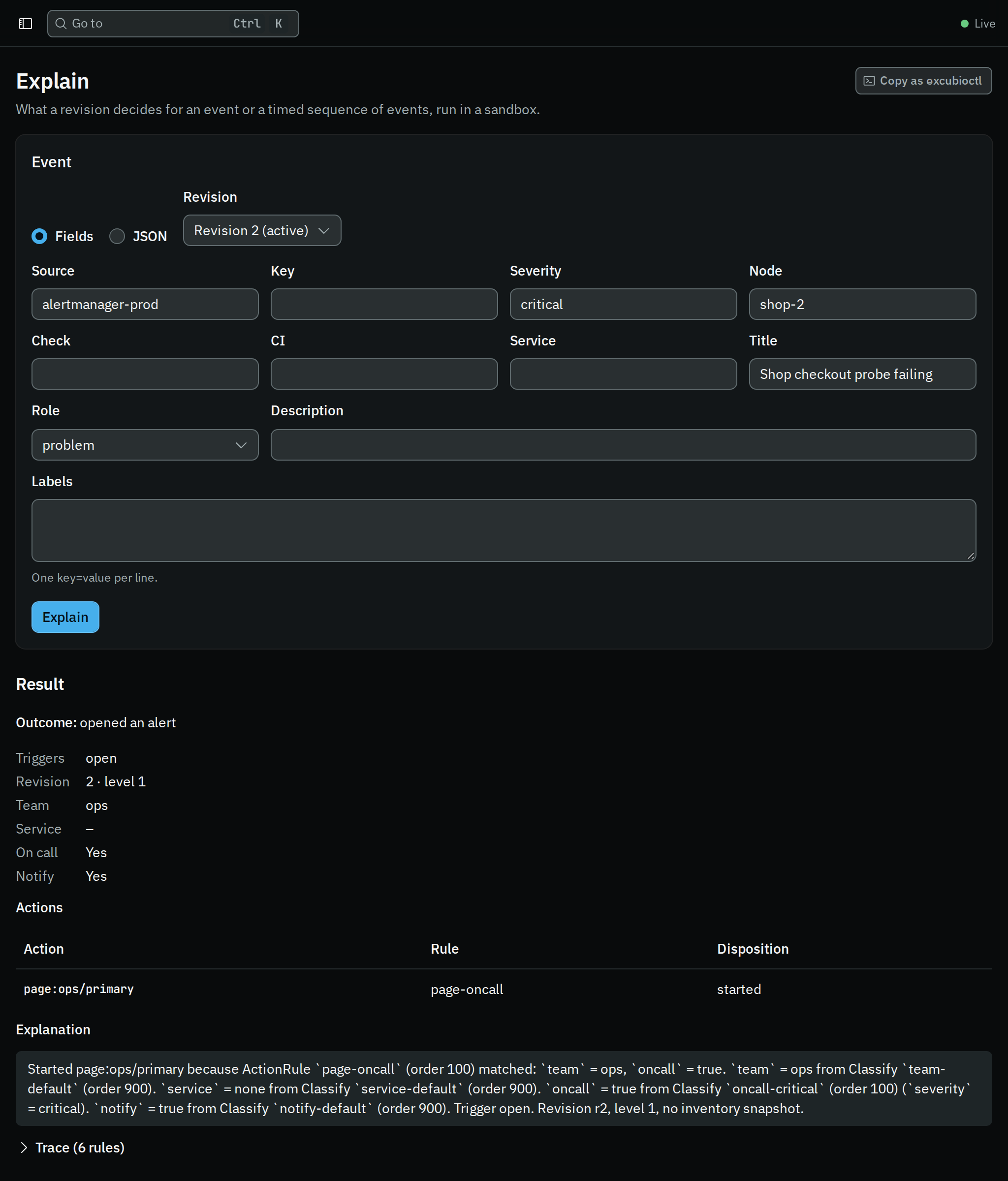
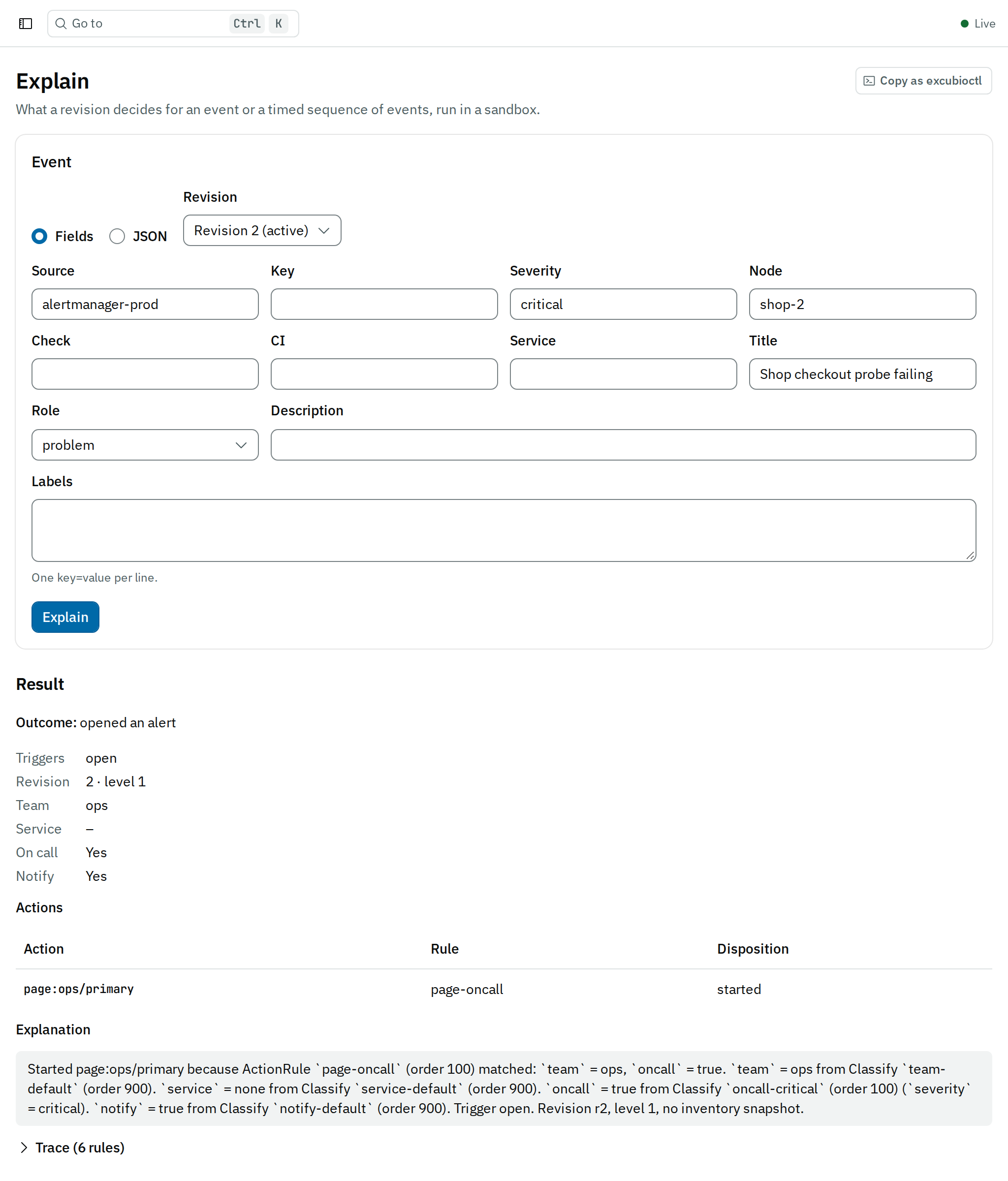
The page's URL keeps the event, so a link shows the same question. To
see how a change would decide for the stored events of the last days,
submit it in a change set: its replay shows the impact per team
(replay). excubioctl explain --event FILE explains from the command line.